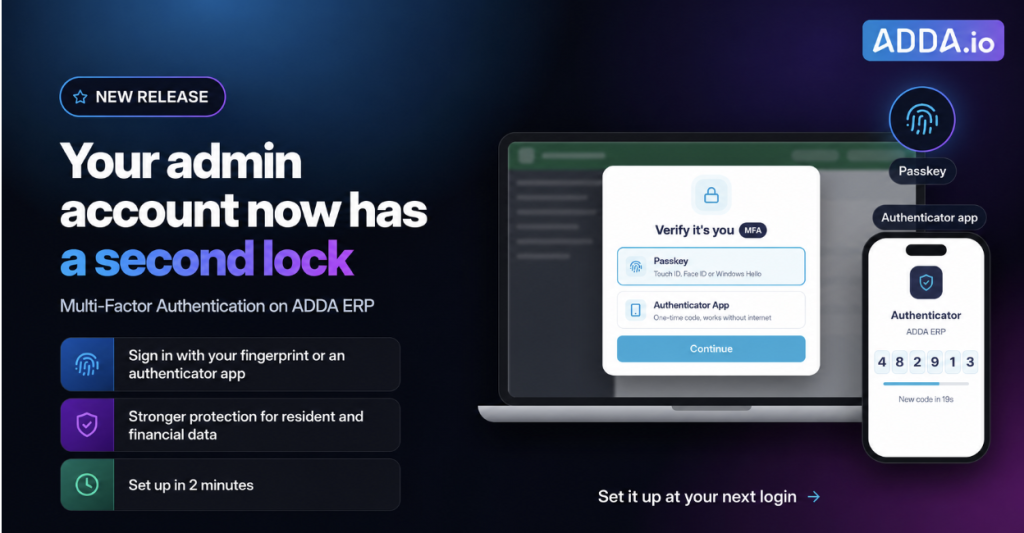
ADDA now protects admin and office staff accounts on ADDA ERP with multi-factor authentication, using a passkey or an authenticator app. This article covers how it works.
Table of Contents
What is multi-factor authentication and how does it work?
Multi-factor authentication requires a second form of verification in addition to your password whenever you sign in, using something you physically have rather than something you know.
The password is the first factor. A passkey on your device or a code from an authenticator app is the second. Somebody who obtains one still cannot get in without the other.
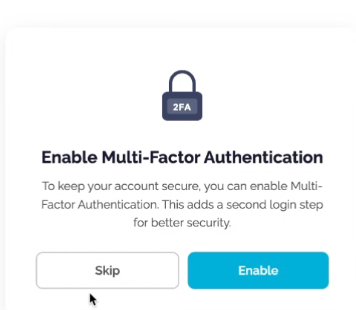
In ADDA ERP, admins and office staff set up MFA from Profile → Preferences → Security, or directly from the prompt they see when they log in. Once it is set up, verification is enabled for every sign-in.
What benefits does Multi-Factor Authentication bring to your Society and your Management Committee?
Multi Factor Authentication brings in some huge benefits:
- Community data gets protected from phishing attacks, password getting misused by someone else, etc.
- Every admin and office staff account gets the same protection. There is nothing for the committee to configure and no member who is left out.
- Nobody gets stranded. If an admin changes their phone or replaces their laptop, they sign in with their other method or a one-time code sent to their registered phone number, and set up again themselves.
Residents using the ADDA app are unaffected. This applies to the accounts where community-wide access is concentrated.
Is MFA the same as 2FA?
Effectively yes, for this purpose. Two-factor authentication means exactly two factors, a password plus one more. Multi-factor is the broader term which can accommodate more than one if it is set up that way.
ADDA uses “multi-factor authentication” because you can register more than one method and choose between them. In everyday conversation the two terms are used interchangeably.
In ADDA, the supported methods are: Authenticator App (TOTP) and Passkey (Touch ID, Face ID, Windows Hello, device PIN).
Registered phone number (SMS OTP) is available as a fallback when the primary method isn’t accessible.
Why is a password alone no longer enough to protect an admin account?
Because a password is a single point of failure, and passwords get stolen in ways that have nothing to do with how carefully they were chosen.
None of these require the admin to have done anything wrong. Choosing a longer password does not help when the password was never guessed in the first place. Once someone has it, there is nothing between them and the account.
What is at risk if a society admin account is compromised?
The personal data of every resident in the community, along with the society’s financial records lies inside the ERP side of ADDA, with Admin accounts having access to all of it.
An admin account is not an ordinary account. Behind that one login sits:
- The resident directory, with names, flat numbers and phone numbers
- Financial transactions, invoices and payment records
- Maintenance and helpdesk history
- Visitor logs, showing who came to which flat and when
A compromised admin login can expose thousands of residents’ details in minutes, and it happens silently. Nothing tells the real admin that somebody else is inside their account.
What is a passkey, and why is it more secure than a code?
A passkey is a credential stored on your own device and unlocked by your device’s own security, such as a fingerprint, face recognition or screen lock. There is no code to type and nothing to copy.
This is what makes passkeys strong against phishing. A code can be read out over the phone to somebody pretending to be support, or entered on a fake login page by mistake. A passkey cannot, because there is no code in the first place, and the passkey works only with the genuine site it was created for.
Passkeys are tied to the device and browser they were created on. ADDA shows this in Security settings, so a passkey created in Chrome on a Mac appears exactly that way. If you regularly work from more than one machine, register a method for each, or add an authenticator app alongside as a portable option.
What is an authenticator app, and when should I use it instead?
An authenticator app generates a one-time code on your phone. It works without internet or mobile signal, which makes it dependable in places where connectivity is unreliable.
It is the practical choice if you sign in from several different computers, if you use a shared or society office machine where a passkey would not make sense, or if you want a method that travels with your phone rather than living on one browser.
Many admins register both. A passkey on the machine they use most, and an authenticator app for everywhere else.
What is the fall back option, in case I don’t want to use the Authenticator App or Passkey?
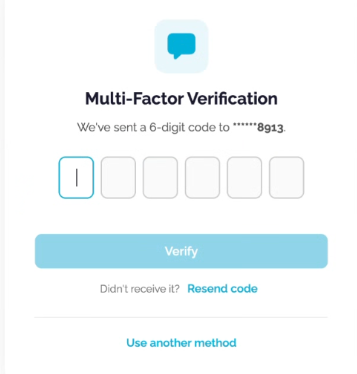
SMS OTP is always available as a fallback. A one-time code is sent to your registered mobile number, and you enter it to complete sign-in.
This matters for committees more than it might sound. Passkeys and authenticator apps are the stronger options, but not every committee member is comfortable installing an app they have not used before, and a mandatory MFA policy is only workable if there is a method everybody can manage. SMS OTP means nobody is left unable to comply.
This matters for committees more than it might sound. It means a lost phone, a new laptop or a passkey that doesn’t work on a new browser never locks anyone out, and nobody has to wait on someone else to get back in.
It is worth understanding the trade-off. An SMS code can be read out to somebody pretending to be from support, or entered on a fake login page. A passkey cannot, and an authenticator app works without any signal at all. That is why SMS is kept as a fallback for recovery, not as an everyday method, and ADDA emails you every time someone signs in to your account using it.
Is MFA mandatory for every admin?
Yes. MFA is being rolled out to every admin and office staff account on ADDA ERP, covering both Management Committee members and office staff.
This is the difference between a security standard and a suggestion. Rather than each committee having to decide, configure and chase it, every account that holds community-wide access gets the same protection by default.
Once the setup window ends, MFA stays on. Members can add a second method or change their default method at any time, but protection cannot be removed.
How long do admins have to set up MFA?
30 days. When MFA reaches your account, you’ll see a setup prompt at login with the option to skip for now. After 30 days, the skip option goes away and setup is required to continue.
This exists for a practical reason. Committee members are volunteers who log in irregularly, and office staff have work to get through. Switching on MFA with immediate effect would stop people mid-task simply because they had not set it up yet.
The 30-day window lets everyone set up a method at their own pace. Setup takes about two minutes.
Will I know if something changes on my account?
Yes. ADDA sends you an email whenever MFA is turned on or off, a method is added, your default method changes, MFA is reset, or someone signs in using your registered phone number instead of your usual method.
If you didn’t make the change, you know straight away, and you can contact ADDA Support..
Does this make signing in harder for committee members?
It adds one step at sign-in, but it does not make sign in harder. And it does not affect residents at all.
Actually, in practice a passkey is often quicker than typing a password, since it is a fingerprint or a screen unlock rather than something to remember.
Frequently asked questions
What is multi-factor authentication in ADDA?
It is an additional verification step required whenever an admin signs in to ADDA ERP. After the password, the admin verifies with a passkey or a one-time code from an authenticator app. Without it, access is denied.
Which MFA methods does ADDA support?
Passkeys and authenticator apps. You can add both and choose which one is your default from Profile → Preferences → Security.
What if I can’t use my passkey or authenticator app?
Choose “Use another method” at sign-in to verify with your other method, or with a one-time SMS code sent to your registered phone number.
What is a passkey?
A credential stored on your own device and unlocked by your fingerprint, face recognition or screen lock. There is no code to type, and it works only with the genuine site it was created for, which makes it strongly resistant to phishing.
Do authenticator apps need internet access?
No. An authenticator app generates the code on your phone and works without internet or mobile signal.
Does MFA apply to residents or only to admins?
It applies to admins and office staff on ADDA ERP, meaning Management Committee members and society office staff. Residents using the ADDA app are not affected.
Is MFA mandatory?
Yes. It is being rolled out to every admin and office staff account on ADDA ERP. There is nothing for the committee to switch on.
How long do I have to set it up?
30 days. You can skip the setup prompt during that time. After 30 days, setup is required to continue.
Can an admin turn MFA off?
Only during the first 30 days. After that, MFA stays on, though you can add a second method or change your default method at any time.
What happens if I lose my phone or change my laptop?
Sign in with your other method or a one-time SMS code to your registered phone number, then set up again from Security settings. You’ll only need ADDA Support if your registered phone number has also changed.
Will I be told if my MFA settings change?
Yes. ADDA emails you whenever MFA is turned on or off, a method is added, your default method changes, MFA is reset, or someone signs in using your registered phone number.
Where do I set this up?
ADDA ERP → Profile → Preferences → Security, or from the setup prompt at login.