Table of Contents
Why do delivery, service and cab entries get messy at apartment gates?
Visitor records get messy because local companies are typed in by hand at the gate, and the same name gets spelled differently every time.
Priya is the community manager at Green Valley Apartments, a 400-flat gated complex in Mumbai. Ramesh runs the main gate on the morning shift. Anita lives in A-704 on the seventh floor of A-wing.
The big delivery and cab apps are easy to log. But a large share of Green Valley’s daily visitors come from businesses around the neighbourhood:
- Local supermarkets like Shree Ganesh Supermarket, which delivers groceries to several flats every morning
- Neighbourhood vendors such as the laundry service, the water-can supplier and the dairy
For each of these, Ramesh types the name himself. During the 8–10 am rush, with a delivery rider waiting at the barrier and a cab behind him, that adds up. And the names never come out the same: “Shree Ganesh” on Monday, “Ganesh Supermart” later during the day and “SG Supermarket” on Tuesday. Anita types her own version when she pre-registers a delivery as an Expected Visitor.
The real cost shows up later. When a resident asks how often the supermarket’s delivery staff came in last month, Priya searches the visitor report and finds only part of the picture, because the rest sits under other spellings.
What Company List Management solves:
- Guards typing the same local company names again and again at the gate
- Inconsistent spellings that make visitor records unreliable
- Visitor reports that can’t be pulled cleanly for a particular vendor or company
- A company list that isn’t built around the businesses your community actually deals with
What does Company List Management do, and how does it work?
Company List Management lets community admins build and control the list of companies guards and residents choose from for Delivery, Service and Cab visitors.
The list starts with default companies already listed in ADDA – these are the larger vendors and companies who operate on pan-India or a pan-city level. Admins then shape it for their own community: add local names, and switch any company on or off. The same list appears in two places:
- ADDA Gatekeeper app: when the guard records a visitor entry
- ADDA resident app: when a resident adds an Expected Visitor
For Delivery companies, the list also connects to Silent Approval, so residents’ existing delivery preferences carry over to newly added companies automatically.
Step 1: Add your local companies
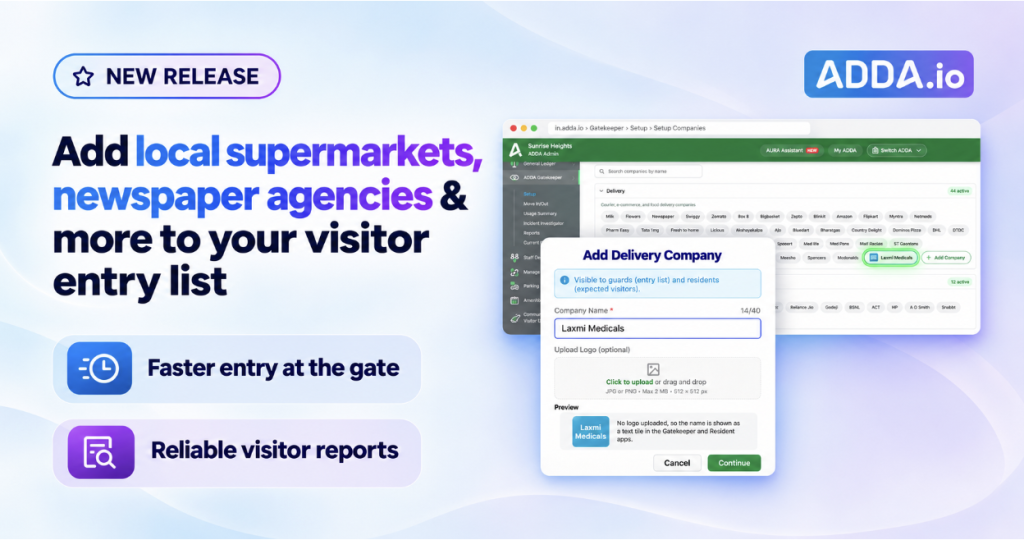
Under Delivery, Service or Cab, the admin clicks + Add Company, enters the company name and confirms. It takes a minute, and the community doesn’t need to raise a request with anyone.
A logo is optional. If no logo is uploaded, the company appears with its initials, so the list still looks clean.
Admins can edit the name and logo of any company they added, from the same screen. ADDA’s default companies can’t be edited, only activated or deactivated.
When a new company is added under Delivery, it is automatically added to residents’ Silent Approval settings. Service and Cab companies are not part of Silent Approval.
Step 2: Switch companies on or off for your community
Admins control the active or inactive status of every company in their list, both the ones they added and ADDA’s defaults.
- If the community doesn’t use or doesn’t want a particular company listed, the admin deactivates it, and guards and residents stop seeing it.
- The admin can reactivate it anytime.
- The change applies only to that community. Other communities keep their own lists.
Step 3: Guards and residents pick from the same list
Once the Gatekeeper app completes a full sync, the updated list appears on the guard’s device. Residents see the same companies when adding an Expected Visitor. Everyone selects the same name, so every entry is recorded the same way.
Residents who use Silent Approval for deliveries don’t need to do anything extra when a new Delivery company is added
If a resident has Silent Approval on for the whole Delivery category, the new company is included and enabled.
If a resident has chosen specific companies, the new company stays switched off. The resident can turn it on from Silent Approval whenever they want.
What happens to existing entries?
Nothing breaks. Editing or deactivating a company leaves past visitor entries unchanged, and Expected Visitors already created stay valid.
What are the benefits of managing your own company list for visitor entry?
The biggest benefit is visitor data you can trust: one name per company, recorded the same way at the gate and in the resident app.
For the Management Committee and community manager
- Reliable visitor reports. One spelling per company means you can pull every visit from a particular vendor in one search.
- Quicker entry at peak hours. Ramesh taps a name instead of typing it, so the queue at the barrier moves faster.
- A list that fits your community. Local supermarkets, vendors and cab operators sit alongside the default companies, and anything you don’t need stays out of the way.
- Changes on your own schedule. A new local vendor can be on the list the same day it starts coming in.
- No clean-up later. Changes never disturb past records, so admins can refine the list without worrying about history.
For residents
- Pre-register the local vendors you actually use. Your neighbourhood supermarket or laundry service is there to select when adding an Expected Visitor.
- Smoother deliveries. When the guard and the resident pick the same name, the entry lines up with what you expected.
- Silent Approval stays in your control. A new local delivery company follows your existing Silent Approval choice. If you’ve picked specific companies, nothing gets approved silently until you switch it on.
How does a community manager set up local companies for the gate?
Priya sets it up in a few minutes from Setup Companies, and Green Valley’s gate runs on one clean list from the next sync.
After finding the supermarket’s visits split across three spellings, Priya opens Setup Companies in ADDA. Under Delivery, she clicks + Add Company, types “Shree Ganesh Supermarket” and confirms. She skips the logo; the company shows with its initials. She adds the laundry service and the water-can supplier under Service, and the station taxi stand under Cab.
Once the Gatekeeper app completes a full sync:
- At the gate: Ramesh selects Shree Ganesh Supermarket from the Delivery list in one tap, even at the morning rush.
- On the seventh floor: Anita finds the supermarket in the list when she adds her grocery delivery as an Expected Visitor.
- In Priya’s report: Every visit from the supermarket now sits under one name, so she can answer the resident’s question in a single search. Past entries stay exactly as they were.
Where do you find Setup Companies in ADDA?
Admins manage the company list in ADDA ERP under ADDA Gatekeeper → Setup → Setup Companies.
| Who | Where | What they do |
| Community admin | ERP → ADDA Gatekeeper → Setup → Setup Companies | Add companies under Delivery, Service, Cab; activate or deactivate any company |
| Guard | ADDA Gatekeeper app → Visitor entry | Select the company from the community’s list |
| Resident | ADDA resident app → Expected Visitor | Select the company when pre-registering a visitor |
| Resident | ADDA resident app → Gate Updates → Silent Approval → Delivery | Turn Silent Approval on or off for Delivery companies, including newly added ones |
Frequently asked questions about company list management for visitor entry
Can our community add a local supermarket or vendor to the visitor list? Yes. Admins add companies under Delivery, Service or Cab from Setup Companies in ADDA ERP, and they appear for guards and residents in your community.
Why does a standard company name matter for visitor reports? When everyone selects the same name, every visit from that company is recorded identically, so you can pull a complete report for any vendor.
Can we hide a default company our community doesn’t need? Yes. Admins can deactivate any company for their community, including ADDA’s default companies, and reactivate it anytime.
Does deactivating a company affect other communities? No. The change applies only to your community. Other communities keep their own lists.
Do guards and residents see the same company list? Yes. The Gatekeeper app for visitor entry and the resident app for Expected Visitors both use your community’s list.
What happens to Silent Approval when we add a new Delivery company?
It is added to residents’ Silent Approval automatically. If a resident has Silent Approval on for the whole Delivery category, the new company is enabled. If they’ve selected specific companies, it starts off and they can switch it on.
Does Silent Approval apply to Service and Cab companies?
No. Silent Approval works for Delivery companies only.
Can I add the same company under more than one category?
No. A company can belong to only one category in a community. If a name already exists, even as inactive, it can’t be added again. Reactivate it from Inactive Companies instead.
What happens to past visitor entries if we edit or deactivate a company? They stay unchanged. Expected Visitors already created also remain valid and update to the new name or logo if the company is edited.
Do we need to upload a logo for every company? No. The logo is optional. Without one, the company shows with its initials.
When does a newly added company appear on the guard’s device? It appears after the Gatekeeper app completes a full sync.
Give your gate a company list that fits your community
Every community has its own neighbourhood supermarkets, vendors and cab stands. With Company List Management in ADDA Gatekeeper, your admins add them once, and guards and residents pick the same name every day.
Already on ADDA? Open ERP → ADDA Gatekeeper → Setup → Setup Companies and add your first local company today.
Exploring ADDA for your community? Book a demo to see how ADDA Gatekeeper keeps visitor entry clean, consistent and in your community’s control.